
If you have never ordered a personalized gift before, the process can look like more than it is. There are fields to fill in, a preview to look at and a few choices to make, and none of it is difficult. It is mostly a matter of knowing what each part is for.
This guide takes you through the order in the same sequence you will see it on screen. Read it once before you start and the first order should feel familiar rather than fiddly.
Before you open a product page
A little preparation saves a lot of backspacing. Write down, in a note on your phone or on paper:
- The exact spelling of every name you plan to use.
- The order you want the names in.
- Any date or year, written in one format.
- The size or color the receiver would choose, if the piece comes in options.
It also helps to decide who the gift is from and what voice the words should speak in. If you want help with that part, our guide to writing the words for a personalized gift is a good companion. When your note is ready, you are ready to begin.
Step 1: Choose a product marked Personalize
Browse the shop, use the gift finder or head straight to a category such as mugs. Products that can carry your words show a Personalize option on their page. Pieces that are ready-made have nothing to fill in, so they go straight to your bag.
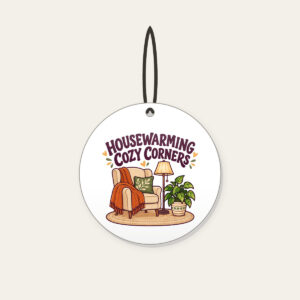
Quiet Lake at Sunrise with Pines Mug. Pale light spreads over a motionless lake while dark pines line the far shore. The scene is edged by a thin white border, like a keepsake photograph, and the stillness is the whole point: no wind, no crowd, only the first light. Housewarming Cozy Corners Ornament is another design to consider for this gift idea.

Step 2: Fill in the fields next to the preview
On a personalized product you will see a preview of the design with fields beside it. Fill them in one by one. As you type, the preview updates, so you can see where your words land on the piece.
Type names exactly as they should appear: capitals, accents, hyphens and spaces included. Our designs use a fixed text size and never shrink your words to squeeze them in. If a line does not fit, the field tells you before you can go further. When that happens, shorten the line, use a nickname or choose a design with more room.
You cannot upload your own photo or artwork at the moment. Each design is a template with fixed options, which is why the printed result can match the preview.
Step 3: Check the preview
The preview is the most important part of the process. What you see there is what gets printed: your names, your choices and the layout of the template. This is the moment to slow down.
Read each line aloud. Compare every name with the note you made. Check the order of names, the date format and the option you chose, such as size or color. If you can, ask someone else to look at it too. A second pair of eyes catches the slip you would never see yourself. Our guide to reading the preview line by line goes through what to look for, and the post on previewing before you order explains why it matters.
There is no separate proof sent after payment, so the preview you check on the product page is your chance to get it right.
Step 4: Add to your bag
When the fields are complete, press Add to bag. If something is still missing, such as a color, a size or a name, the button tells you what is needed before it lets you continue. That is not an error; it is a reminder.
Wild Lupine Tumbler is another design to consider for this gift idea.
These gift ideas include made-to-order designs. Choosing finished artwork does not mean an item is in stock or ready for immediate delivery. Some selections use finished artwork; only choose custom text where the listing offers it. Check each product’s options and the shipping information before planning when to give it. The photographs illustrate gift-giving ideas; use each product’s listing to see its own design.
Quiet Lake at Sunrise with Pines Mug
- Free gift
$21.95In stock
Housewarming Cozy Corners Ceramic Ornament
- Free gift
$19.95In stock
Wild Lupine Stainless Tumbler
- Free gift
$32.95In stock
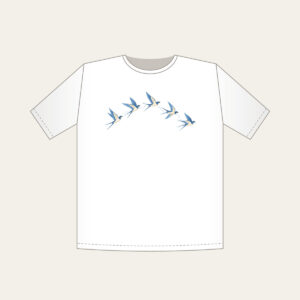
Five Swallows in a Gentle Arc T-Shirt
- Free gift
$24.95In stock


Step 5: Edit your details in the bag if you need to
In your cart you will see each item along with an Edit details option. Use it to look at your choices once more or to change a name, a size or a color before you pay. It is a handy last chance, and it is much easier to make a change here than after the order is placed.
Five Swallows in a Gentle Arc T-Shirt. Five swallows fly in a gentle arc, drawn in cream and sky blue, with a fine dotted trail showing the path they have already crossed. The wings are light and the spacing is open, which gives the motif a hopeful, forward-looking feeling. For related guidance, see ordering a group names list without mistakes.
Step 6: Check out for your region
At checkout you enter the delivery address and see the price for it. Shipping is priced by region: the United States, the EU and the rest of the world. The total updates once the address is in, so you see the full amount before you pay. For more, see the shipping page.
An order goes to one address. If you are sending gifts to several people in different places, place a separate order for each. You can find tips in our guide to ordering gifts for several addresses.
After you pay, you can follow your order with the order number and your email on the track order page. You do not need an account for that.
Small habits that make a first order easier
A few habits turn a nervous first order into a calm one.
- Order one piece at a time. Finish a single item, check its preview and add it to your bag before opening the next. Mixing two half-finished pieces is how names end up in the wrong fields.
- Keep your note open beside the screen. Copy names from your note rather than retyping them from memory.
- Check the options as carefully as the words. Size, color, handle style and shape are part of the order, and they are easy to overlook when you are focused on spelling.
- Leave the final look for the next morning. If you can, add everything to your bag, close the page and look again with fresh eyes. Many slips disappear the moment you are no longer tired.
- Allow time. Start early so you are never rushing the preview. For timing questions, the shipping page is the place to look.

If something looks wrong after ordering
If you notice a mistake after you pay, contact us as soon as you can and include your order number. A change is only possible while the order has not gone into production, so speed matters. The contact page and the help center are the places to start, and our guide to fixing a mistake before and after ordering covers what to say.
FAQ
Do I need an account to order?
No. You can order without one, and you follow your order with the order number and your email.
What if my text does not fit?
The field warns you before you can add the item to your bag. The size of the text is fixed, so shorten the wording or choose a design with more room.
Will I receive a separate proof to approve?
No. The preview you see while you order is what gets printed, so check it carefully before you add the item to your bag.
Can I order for different people in one go?
Each order goes to one address, so place a separate order for each recipient. You can build each one with its own fields and preview.
Where can I find answers to other ordering questions?
The personalization questions page and the FAQ cover most of what comes up, and the how-to-personalize page shows the steps in short form.